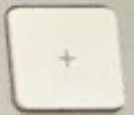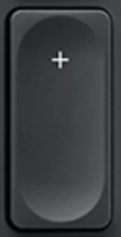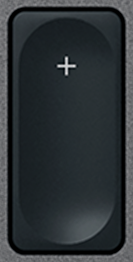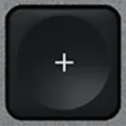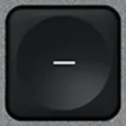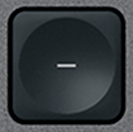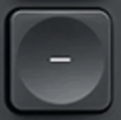
- (Num) replacement key QWERTY (US) Black for Logitech Craft
- (Num)Replacement key for keyboard Logitech Craft
Colour: Black
In stock
Not sure?
Not sure this is the right key, or have another question? Ask us on the chat, we'll reply as soon as possible.
Ask a questionVery easy to replace
2 minutes, no need to take the keyboard apart. No skills required.
- Lift the old key by one corner, straight up, with a fingernail or a spudger.
- Clip the supplied hinge onto its hooks.
- Set the new key on top and press the centre until it clicks.
Worried about getting it wrong? We'll send you a video.
Tell us which key you are replacing and we'll send you a video showing, step by step, how to remove it and fit the new one. Free, before or after you order.
Ask for the videoSee how it's done
Video “Logitech MX Keys how to remove keys” by Tin, published on YouTube under the standard YouTube licence: all rights reserved by its author. Keyspares is neither its author nor affiliated with Tin. The player only loads when you click; YouTube may then set cookies (Google privacy policy).
Recommended tools for some keys
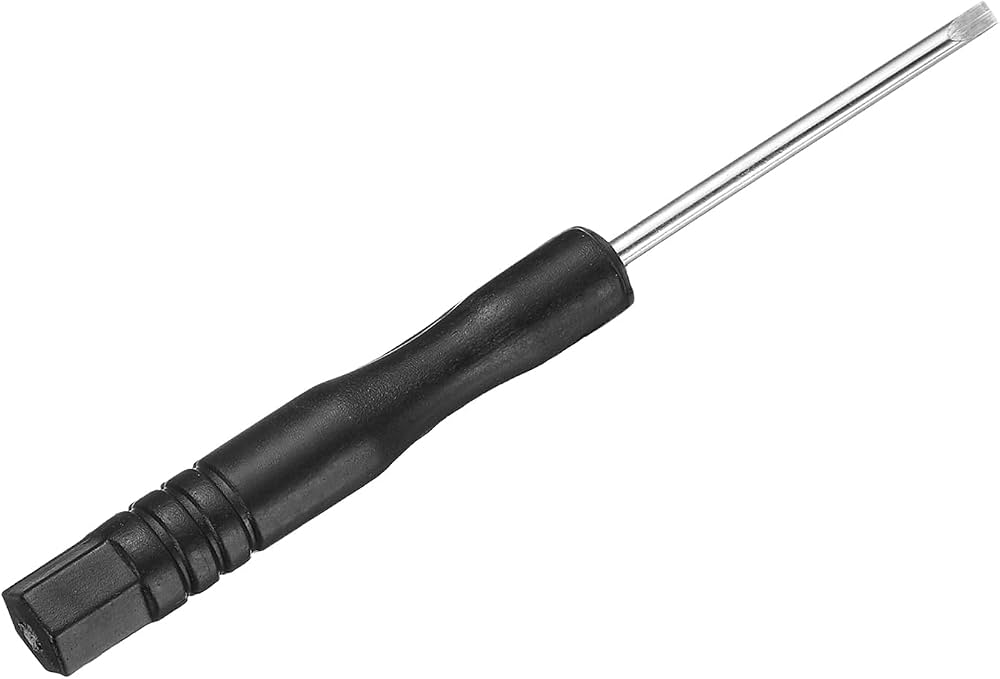
Optional but handy: the spudger lifts the key without scratching or bending the mechanism, and the thin blade of the flat screwdriver unhooks the plastic hinge and helps clip it back in.

Specifications
- Category
- Numpad
- Keyboard layout
- QWERTY (US)
- Compatibility
- Craft
- Color
- Black
- Size
- 1U (standard)
About the - (Num) replacement key
An incomplete keypad slows down every figure you type: this - (Num) key for the MX Keys, shipped with its hinge, replaces the missing one. We take the - (Num) key from dismantled keyboards: it is a genuine, pre-owned Logitech cap, sold without the dome.
Compatibility
This - (Num) keycap fits the full-size MX Keys (MX Keys, MX Keys S and MX Keys for Mac), the only ones with a numeric keypad: the MX Keys Mini has none, so there is no place for it there. The legend is that of the QWERTY (US) layout.
The - (Num) key: position, size and wear
Only the full-size MX Keys has a numeric keypad; its keys take bursts of one-handed presses whenever figures are keyed in. Like every one-unit key, the - (Num) key has no metal wire underneath: it is held only by its scissor hinge, clipped onto four anchor points. Once one clip gives way, the key tilts, pops off or falls out, while the cap itself is often intact.
How to install it
Allow under a minute to refit the - (Num) key, bare-handed or with a plastic spudger: free the old hinge if it is broken, clip the new one in the same orientation, then press straight down on the cap until you feel a soft click.
- (Num) key — questions
- Will the - (Num) key fit my MX Keys?
- Yes, if it is a full-size MX Keys (MX Keys, MX Keys S and MX Keys for Mac) in the QWERTY (US) layout. The MX Keys Mini has no numeric keypad.
- Is the hinge included with the - (Num) key?
- Yes. The - (Num) key ships with its scissor hinge, so it also fixes a key that lost its clip. The rubber dome under the - (Num) key is not included: yours stays on the keyboard, and a spare can be ordered separately if it is damaged.
- My - (Num) key still doesn't work after I replaced the cap — why?
- If the - (Num) key was unresponsive rather than physically broken, the fault usually lies in its scissor hinge, included here, or in the rubber dome underneath, sold separately. Replace the hinge first, then the dome if the - (Num) key still feels mushy.
Check your keyboard's brand
You are looking at a Logitech key. Keycap and hinge differ between brands: this key will not fit an Apple keyboard.
Apple keys in the catalogue