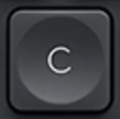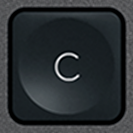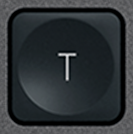
T replacement key QWERTY (US) Black for Logitech MX Keys
TReplacement key for keyboard Logitech MX Keys
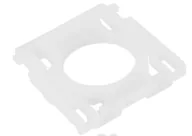 Hinge includedThe white plastic clip that holds the key: shipped with it, ready to snap on.
Colour: Black
This MX Keys Mini key fits the MX Keys (PC), but it comes from a AZERTY (FR) keyboard: the letter is the same, while any secondary legend follows that other language. Check that it suits you before ordering.
This key is out of stock
T — QWERTY (US)
Available now
We have this key for these layouts
Same part, taken from a keyboard of another layout or from another compatible keyboard: the printed legend, or even the colour, may differ slightly.
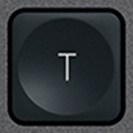
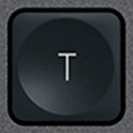
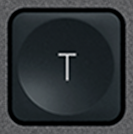
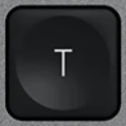
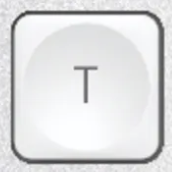

The T key is out of stock in QWERTY (US) on the site. Our keys are usually available to order within 7 to 15 days, and sometimes already in stock. Leave us your email or chat with us: we will check our stock and get back to you.
Only need the white plastic hinge?
Is your key fine and only the hinge broken? Click the button and leave your email: we'll get back to you if we have the hinge in stock.
Not sure?
Not sure this is the right key, or have another question? Ask us on the chat, we'll reply as soon as possible.
Ask a questionVery easy to replace
2 minutes, no need to take the keyboard apart. No skills required.
- Lift the old key by one corner, straight up, with a fingernail or a spudger.
- Clip the supplied hinge onto its hooks.
- Set the new key on top and press the centre until it clicks.
Worried about getting it wrong? We'll send you a video.
Tell us which key you are replacing and we'll send you a video showing, step by step, how to remove it and fit the new one. Free, before or after you order.
Ask for the videoSee how it's done
Video “Logitech MX Keys how to remove keys” by Tin, published on YouTube under the standard YouTube licence: all rights reserved by its author. Keyspares is neither its author nor affiliated with Tin. The player only loads when you click; YouTube may then set cookies (Google privacy policy).
Recommended tools for some keys
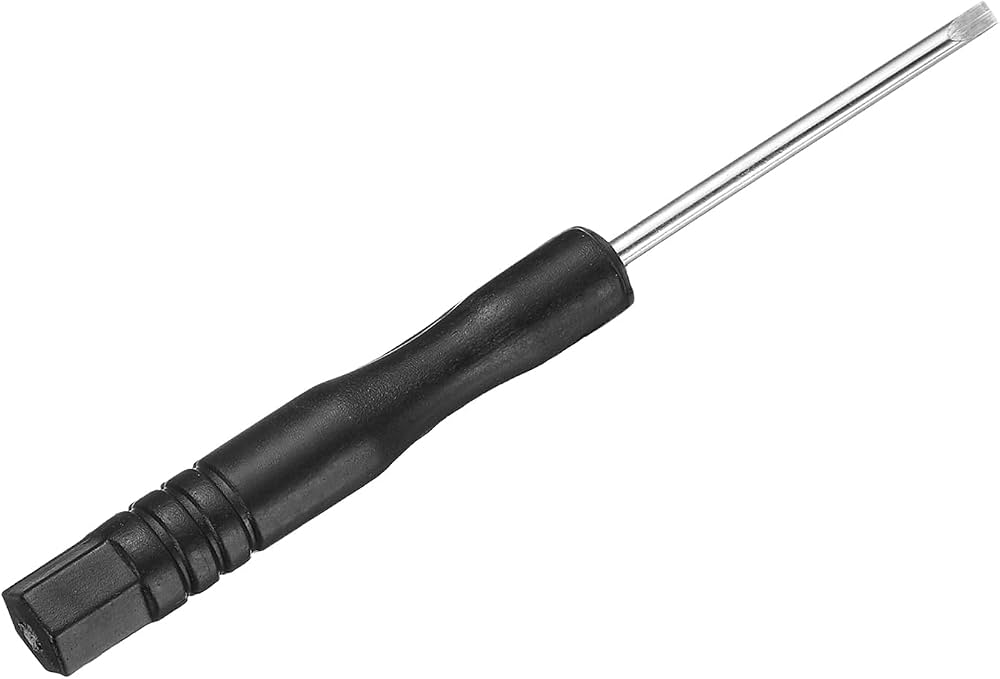
Optional but handy: the spudger lifts the key without scratching or bending the mechanism, and the thin blade of the flat screwdriver unhooks the plastic hinge and helps clip it back in.

Specifications
- Category
- Letters
- Keyboard layout
- QWERTY (US)
- Compatibility
- MX Keys (PC)
- Color
- Black
- Size
- 1U (standard)
Compatible with these Logitech keyboards
- Logitech Signature Slim K950
- Logitech MK950 Signature Slim
- Logitech Signature Slim MK955
- Logitech Signature Slim Solar+ K980
- Logitech ERGO K860
On these keyboards, this genuine MX Keys key takes the place of the official one: same scissor mechanism and mounting, with a legend and finish that may differ slightly.
About the T replacement key
Missing the T on your Logitech MX Keys, or has it stopped responding? This is the key on its own, hinge included, ready to clip in where the old one was. A genuine salvaged part: the T key is taken, pre-owned, from a dismantled keyboard and shipped without a dome.
Compatibility
Across the letter and number block, the MX Keys, MX Keys S, MX Keys Mini and MX Keys for Mac share the same one-unit cap, so this T keycap fits a full-size model and a Mini alike. Choose it by its legend — here, the QWERTY (US) layout.
The T key: position, size and wear
On the full-size MX Keys, the T key sits on the top letter row, just below the digits, 5th key to the right of Tab. In touch typing, it belongs to the left index finger. It also does double duty in Ctrl + T, which opens a new browser tab. Nothing steadies the T key apart from its scissor hinge: one-unit keys have no metal wire. A hinge split on one side makes it rock, and a torn clip lets it go at the first knock.
How to install it
No tools needed. Lift what is left of the old T key by one corner, straight up, clear away any pieces of hinge, clip the supplied hinge flat onto its anchor points, then set the new cap on top and press the centre until it clicks.
T key — questions
- Does this T keycap fit my Logitech MX Keys?
- It does, full-size or Mini: the T key has the same one-unit cap on all four models. Only the legend depends on the layout — QWERTY (US) for this one.
- Is the hinge included with the T key?
- Yes, the X-shaped hinge comes with the T key — it is often the part that broke. Only the rubber dome is not supplied: it stays in place on the keyboard under the T key, and domes are sold in packs among our spare parts.
- My T key stays dead despite a new cap — where is the fault?
- A key that goes down normally but types nothing points to the rubber dome, sold separately; if the T key wobbles, it is the hinge, supplied with it. When several keys next to the T key fail at the same time, the cause is inside the keyboard, not under the cap.
Check your keyboard's brand
You are looking at a Logitech key. Keycap and hinge differ between brands: this key will not fit an Apple keyboard.
Apple keys in the catalogue